 2 min
2 minCheck the on-site agent
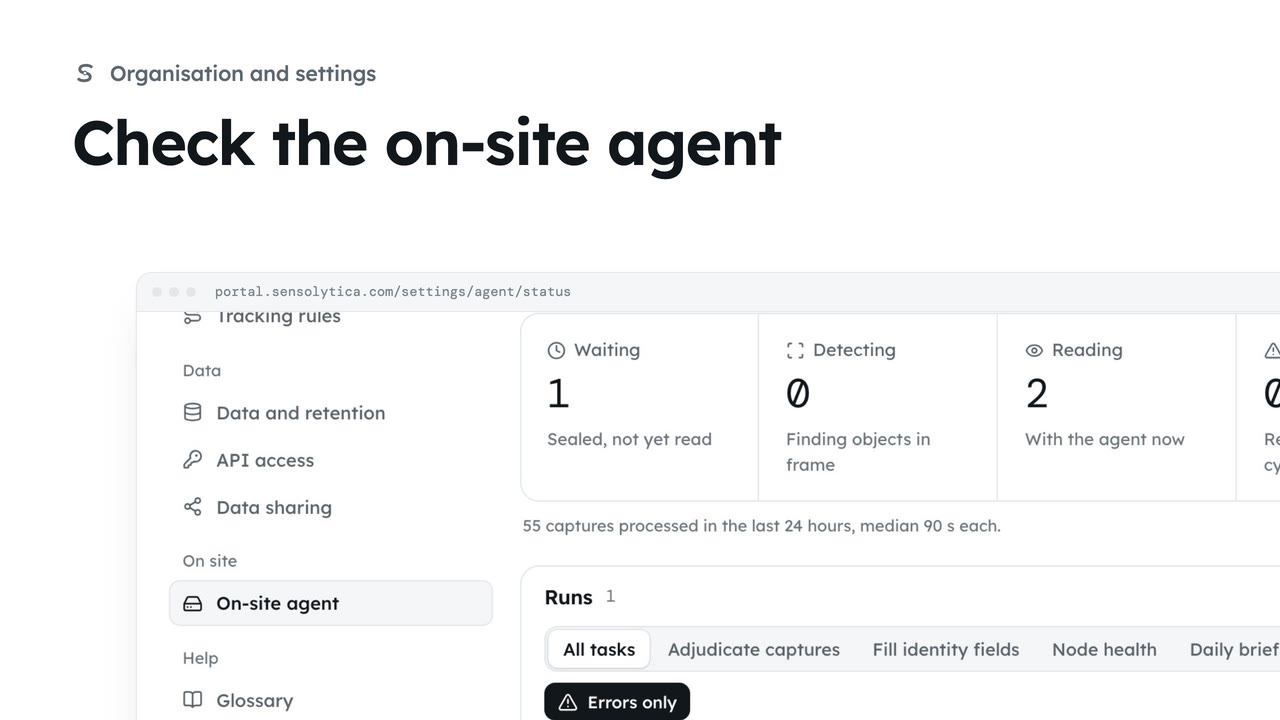
See what the on-site agent does, whether it is reporting in, its recent runs and the briefs it has written.
2 min4 stepsAdmin
Change what the on-site agent is told for one task, compare it with the platform template, and save your version.
One prompt per task
Settings, On-site agent, Prompts. Each task shows Platform or Yours.
Open the daily brief
Choose Daily brief to see its model, system prompt and user template.
Insert a variable
Click in User template, then click a variable to insert it at the cursor.
Used from the next cycle
Choose Save prompt, then Save prompt in the confirm window.
Open the Prompts tab of the on-site agent. Each task starts on the Sensolytica platform template. Tasks marked Yours run your own version.
Choose Daily brief. This one already runs the harbour’s own version. Choose Compare with the platform to see the template it started from.
Click in the user template, then click a variable below to insert it where the cursor is. Only the variables listed can be filled for this task.
Choose Save prompt and confirm. Your organisation uses it from the agent’s next cycle. Whatever a prompt says, the agent only advises. Reset to the platform template takes you back at any time.
Sign in with your work email. Your own organisation's records, nodes and units take the place of the Westmouth ones.
2 minSee what the on-site agent does, whether it is reporting in, its recent runs and the briefs it has written.
2 min4 stepsAdmin
 2 min
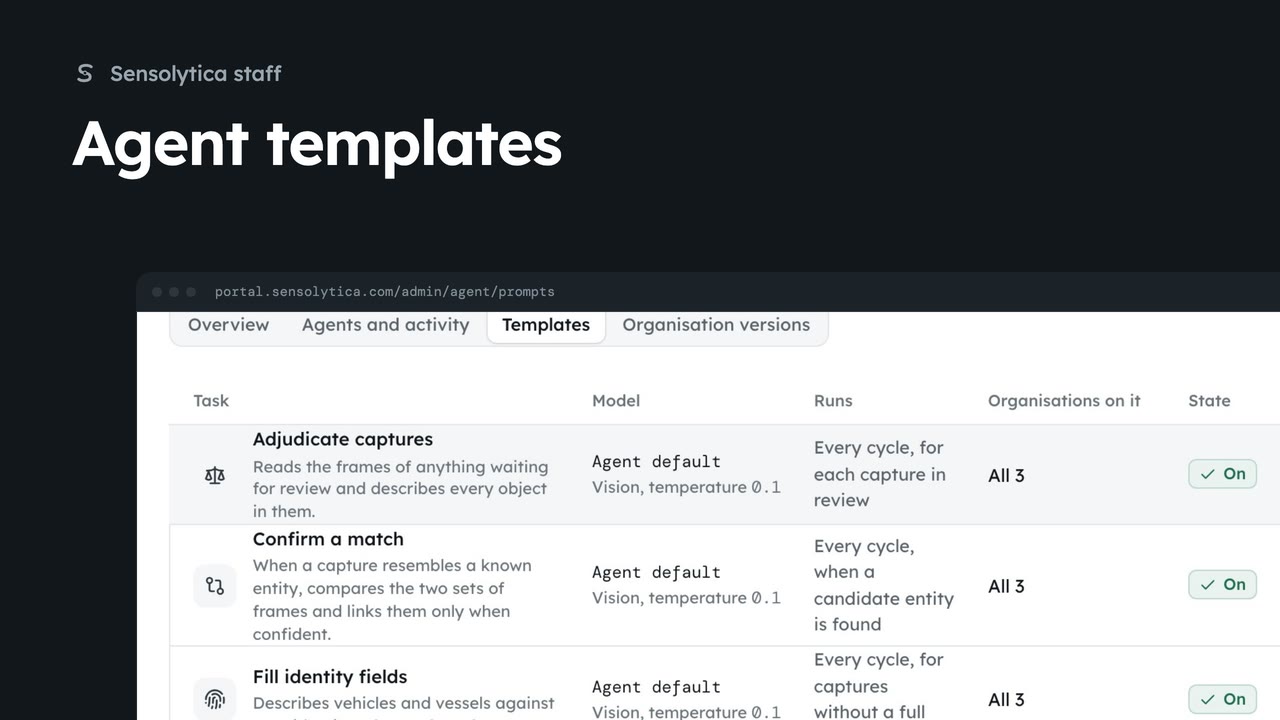
2 minCheck the agents reporting in, then change the template an agent task runs for every organisation.
2 min5 stepsSensolytica staff
 1 min
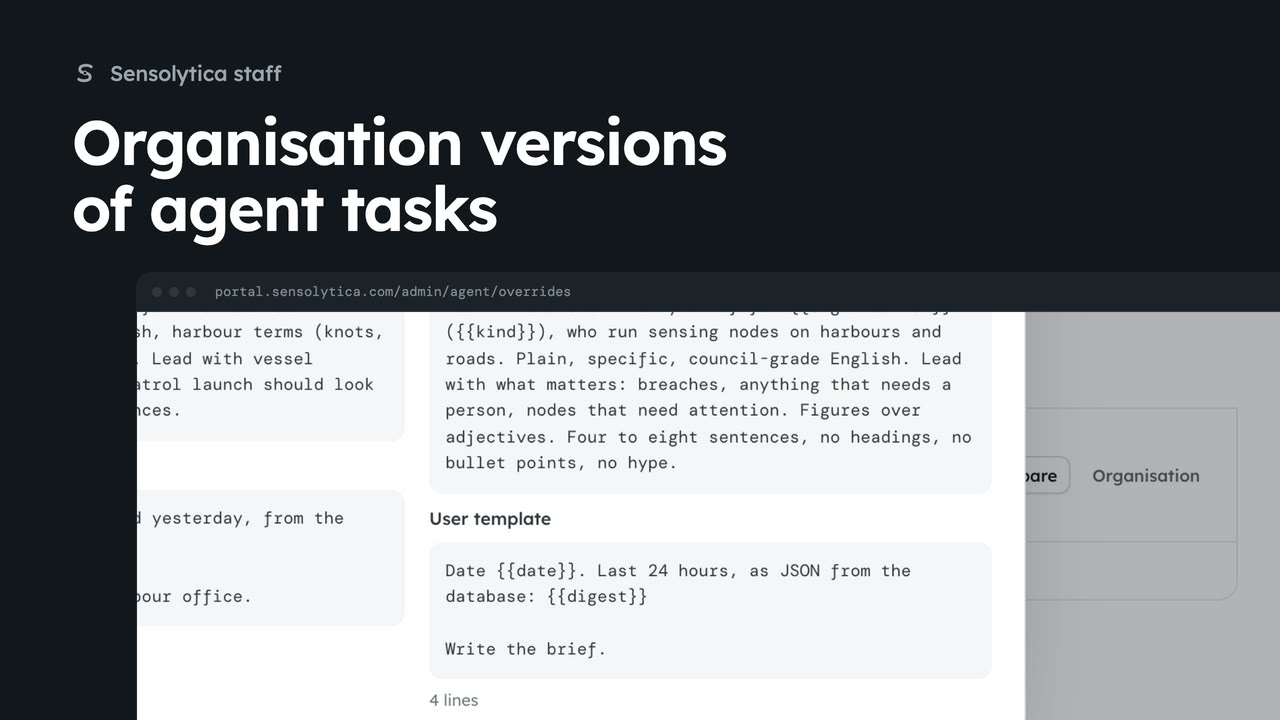
1 minSee which organisations run their own version of an agent task and compare it with the template.
1 min4 stepsSensolytica staff
Checked against the portal on 15 October 2026. Westmouth names, vessels, units and figures are illustrative. General guidance on using the portal, not legal, regulatory or financial advice.