 2 min
2 minAnswer a support request
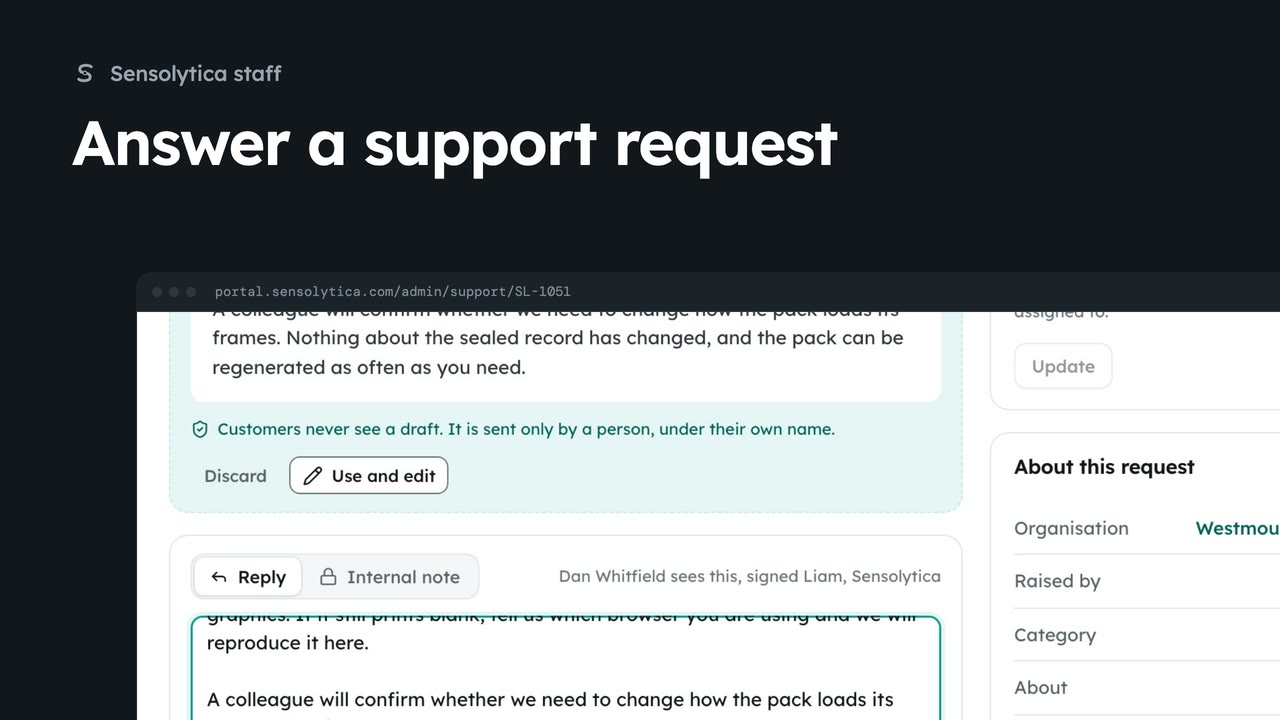
Take a request from the support queue, use the agent's suggested reply, and send it under your own name.
2 min6 stepsSensolytica staff
Leave an internal note on a support request for other staff, and change its status and priority.
Support queue
The queue, then the request.
Internal note
Only Sensolytica staff see notes.
Assign and status
They see the status and priority, not who it is assigned to.
Open the Support queue. The request about HBR-04 is waiting on the harbour, so choose All open and recent, then open it.
Switch from Reply to Internal note. Only Sensolytica staff see notes: the customer never does. Write it, choose Add note and confirm.
Under Assign and status, set the status to Waiting on them and the priority to Normal, then Update and confirm. The customer sees the status and priority, but not who has it.
Sign in with your work email. Your own organisation's records, nodes and units take the place of the Westmouth ones.
2 minTake a request from the support queue, use the agent's suggested reply, and send it under your own name.
2 min6 stepsSensolytica staff
 2 min
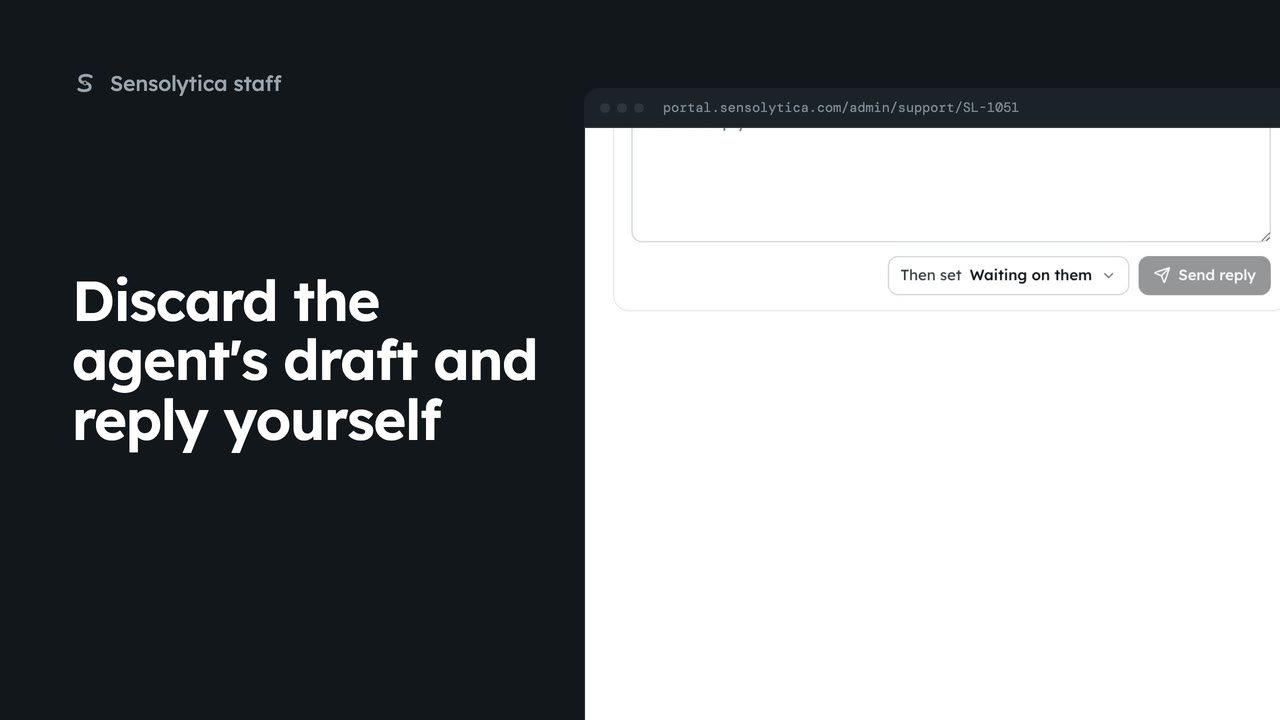
2 minThrow away a suggested reply that is wrong, write your own, and set the request resolved as you send it.
2 min3 stepsSensolytica staff
 1 min
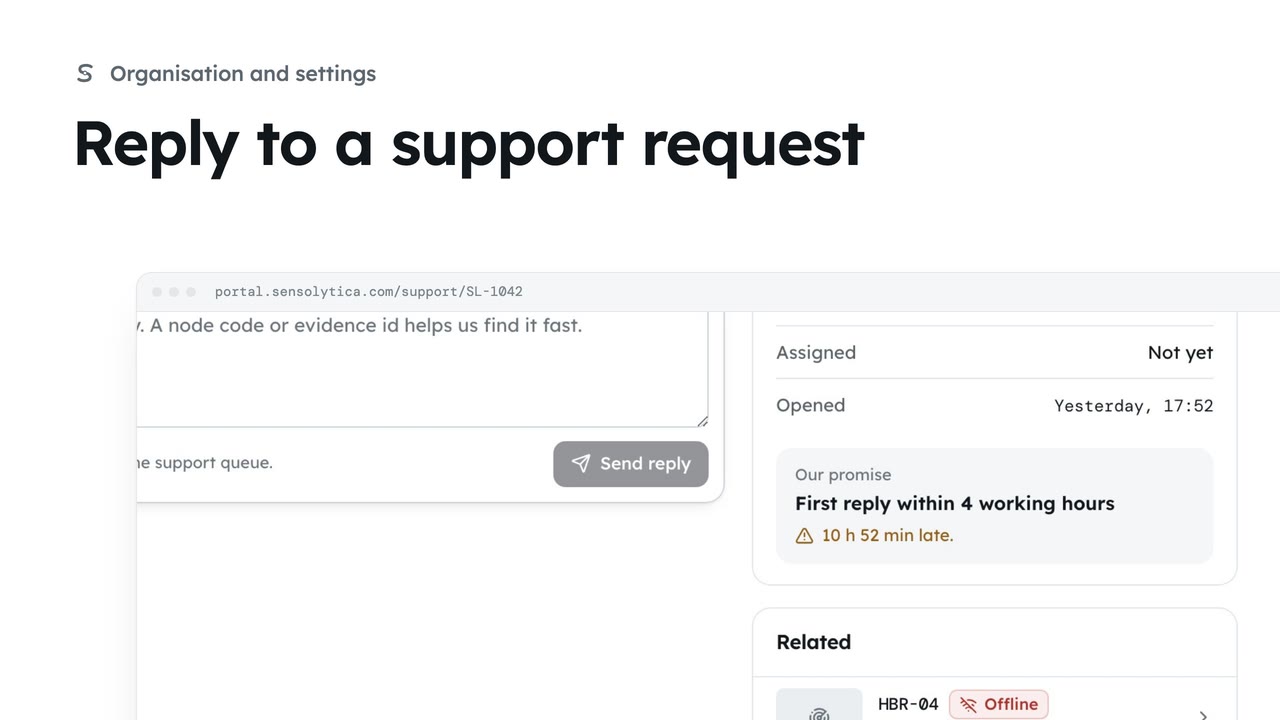
1 minFollow a request you raised, read our replies and answer them.
1 min3 stepsAdmin, Operator, Maker
Checked against the portal on 15 October 2026. Westmouth names, vessels, units and figures are illustrative. General guidance on using the portal, not legal, regulatory or financial advice.