 2 min
2 minVessel and vehicle records
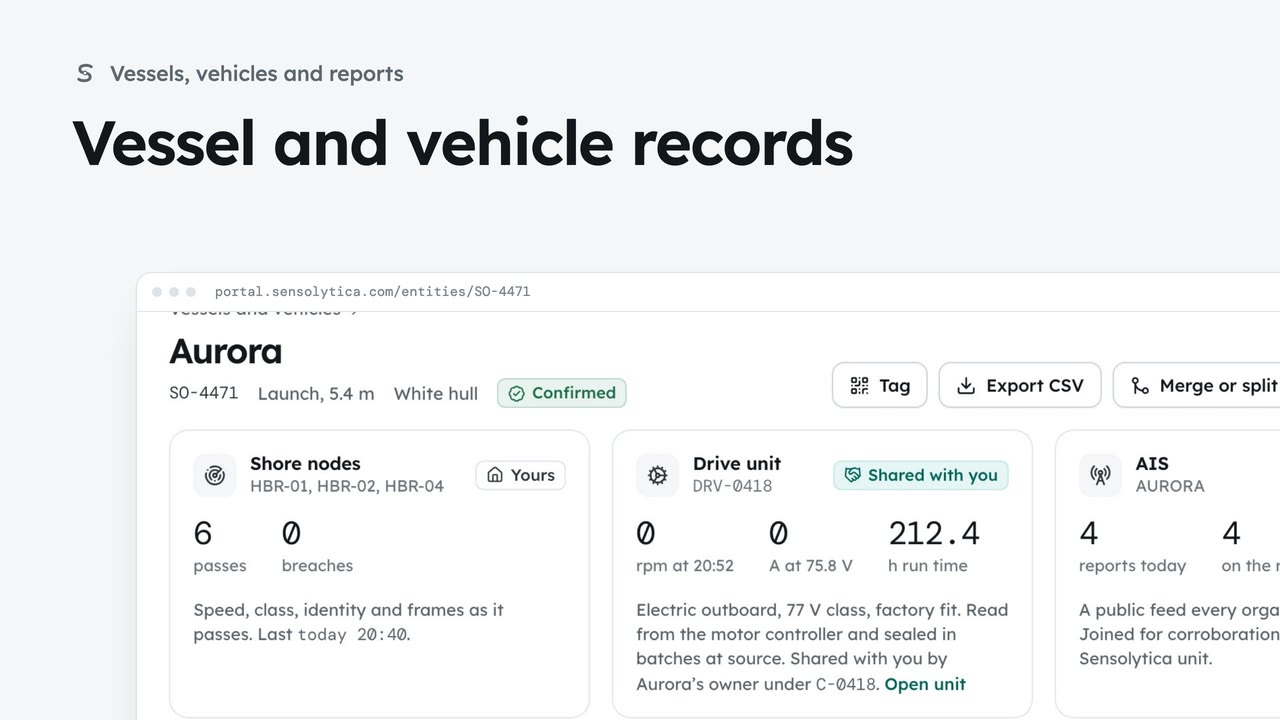
Find a vessel or vehicle and read its one record, joining every shore node pass, its drive unit and AIS.
2 min6 stepsAdmin, Operator
Describe a vehicle or vessel so a colleague could pick it out, and confirm a provisional identity.
The Vehicles tab
Open Vessels and vehicles, choose Vehicles, then the record you want.
Edit identity
On the record, choose Edit identity to change what is on file.
Best frames beside the fields
The key frame of each recent sighting. Choose a thumbnail to see it large.
Describe what sets it apart
Each changed field is tagged Changed and shows what it was.
Save identity
Save identity asks first, then writes the change to the audit trail with your name.
Provisional
Back on Vessels and vehicles, the Provisional tab lists records nobody has confirmed.
Confirm identity
Check the frames and fields, then Confirm identity. It can still be edited or split later.
Open Vessels and vehicles from the sidebar and choose the Vehicles tab. The council’s vans and cars are listed here. Open WX26 SLX, the silver van the highways team calls WBC van 07.
The van’s identity shows on every sighting and evidence pack, so keep it accurate. Beside Tag, Export CSV and Merge or split, choose Edit identity.
On the left are the best frames, one from each recent sighting. Choose a thumbnail to see it large while you fill in the fields on the right.
Add what tells it apart, here a dent on the nearside rear door. The field is tagged Changed, shows what it was, and a bar appears at the foot of the page.
Choose Save identity in the bar, and confirm. What you save appears on every sighting and evidence pack, and the audit trail records your name. If you leave with unsaved changes, the portal asks first.
Choose Vessels and vehicles in the breadcrumb, then the Provisional tab. WX26 SLK was seen, but no person has confirmed its identity yet. Open it.
Check the readings and the fields, then choose Confirm identity, and confirm. The record is marked Confirmed with your name in the audit trail. You can still edit it later, or split it with Merge or split.
Sign in with your work email. Your own organisation's records, nodes and units take the place of the Westmouth ones.
2 minFind a vessel or vehicle and read its one record, joining every shore node pass, its drive unit and AIS.
2 min6 stepsAdmin, Operator
 3 min
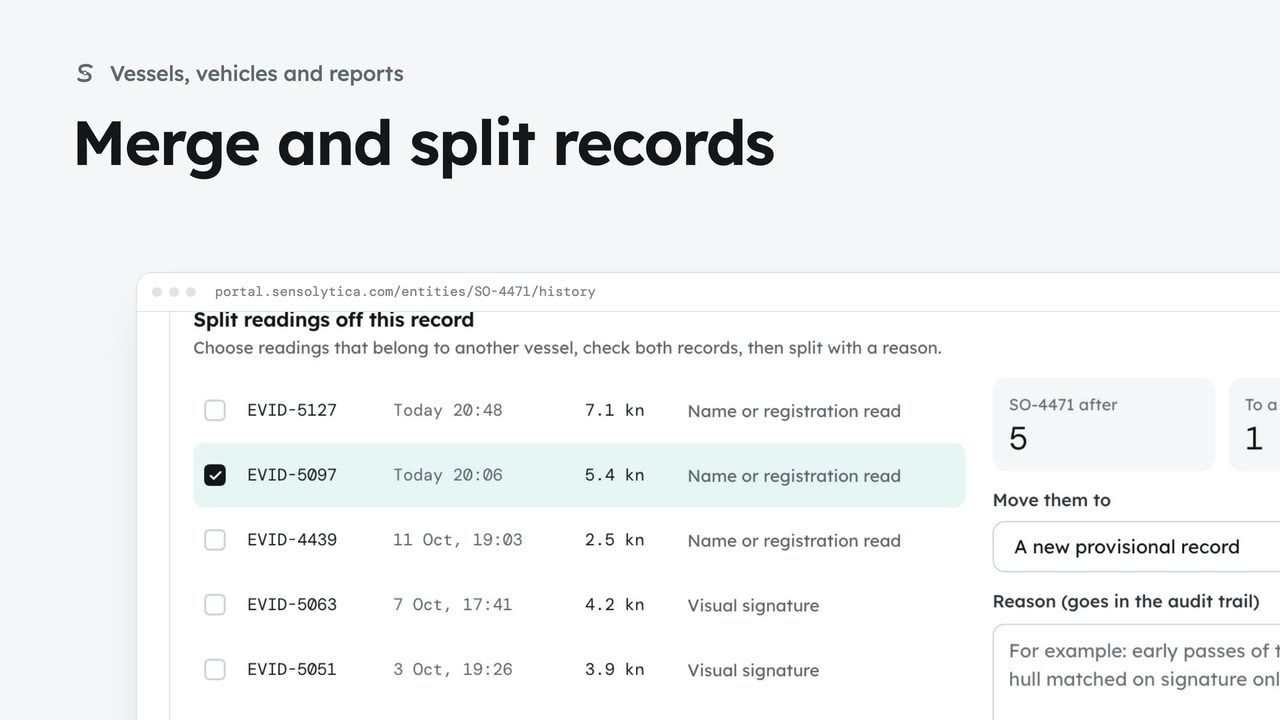
3 minJoin two records of the same vessel or vehicle, undo it if needed, and split off readings that belong to another.
3 min7 stepsAdmin, Operator
 2 min
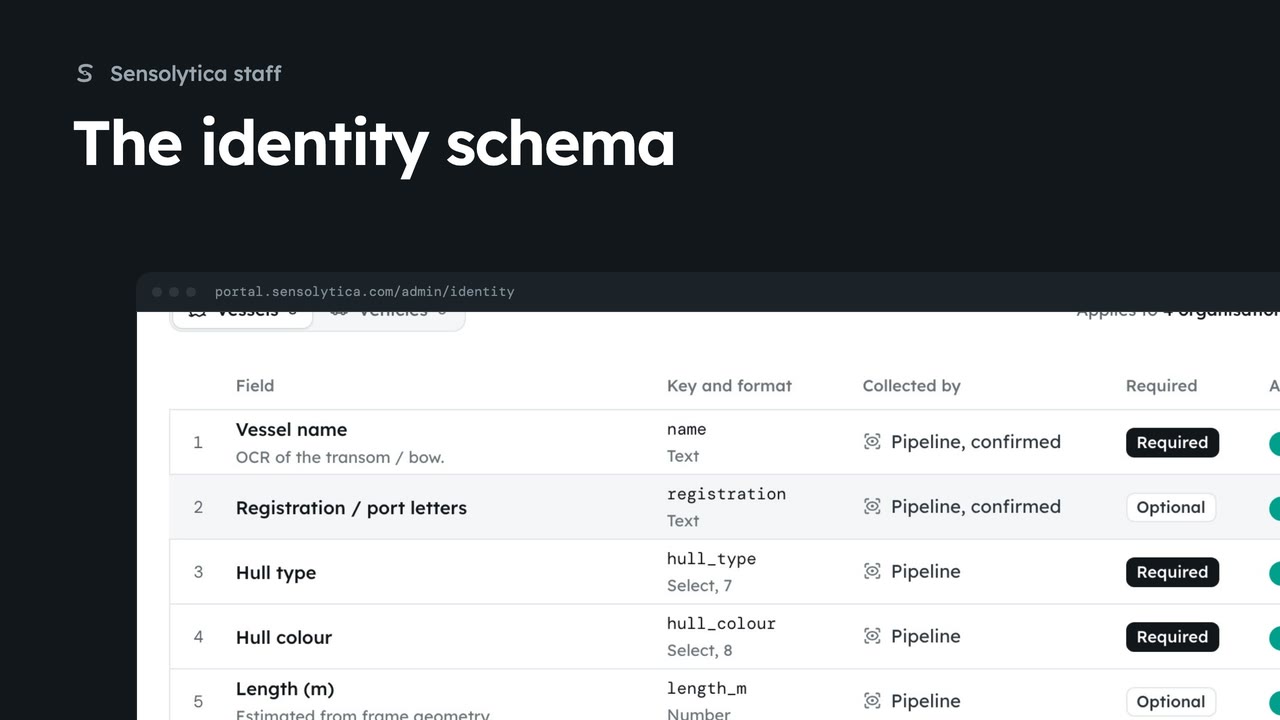
2 minChoose the fields that identify a vessel or a vehicle for every organisation, and who fills each one in.
2 min5 stepsSensolytica staff
Checked against the portal on 15 October 2026. Westmouth names, vessels, units and figures are illustrative. General guidance on using the portal, not legal, regulatory or financial advice.