 2 min
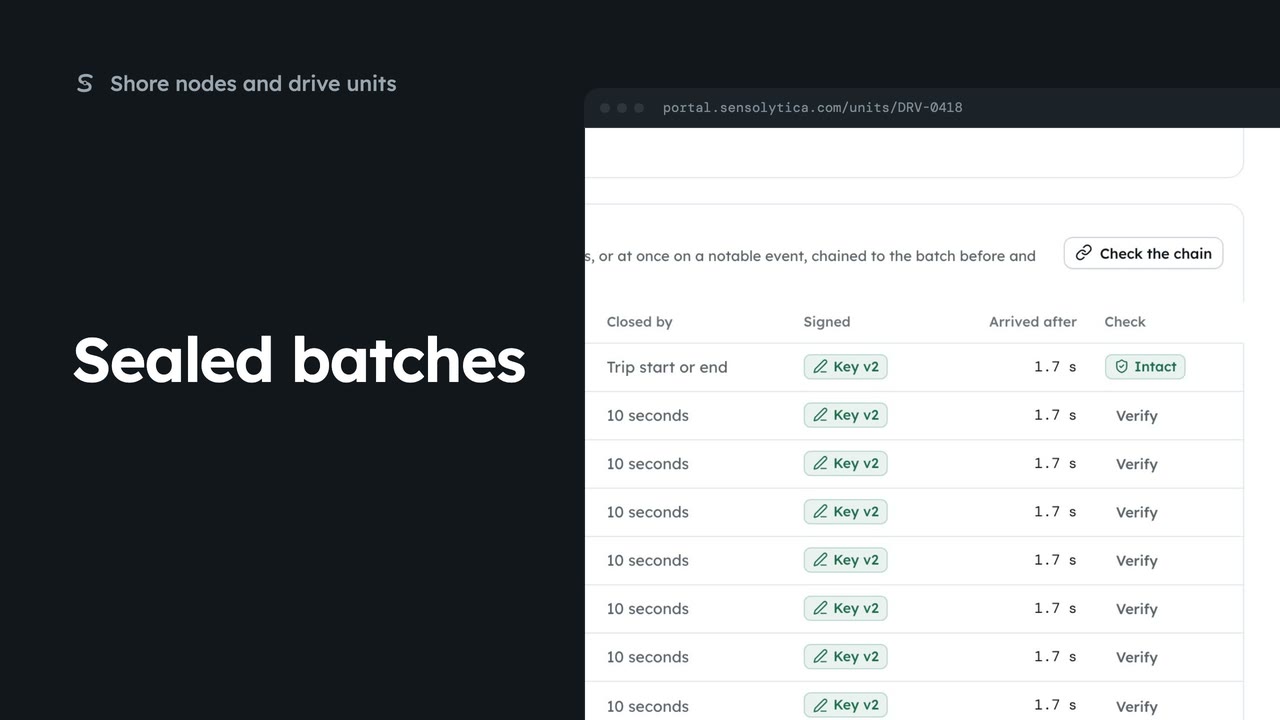
2 minSealed batches
Check that a drive unit’s readings have not changed since they were sealed at source.
2 min5 stepsAdmin, Operator
Give a drive unit a new device key when it is replaced or its key may have been exposed.
Your own unit
Rotate the key sits at the foot of Sealed batches, on units your organisation owns.
New public key
Paste the public key the unit shows on its service screen.
Rotate the key
Choose Rotate the key, then confirm. The new key version shows at the foot; batches signed with the old key stay valid.
On Drive units, open one of your own units, here DRV-0377, and scroll to Sealed batches. Rotate the key is at the foot of the panel. Use it when the unit is replaced or its key may have been exposed.
Choose Rotate the key. In the dialog, paste the new public key that the unit shows on its service screen.
Choose Rotate the key, and Rotate the key again to confirm. The foot of the panel now names the new key version. Batches signed with the old key stay valid; from now on only the new key is accepted.
Sign in with your work email. Your own organisation's records, nodes and units take the place of the Westmouth ones.
2 minCheck that a drive unit’s readings have not changed since they were sealed at source.
2 min5 stepsAdmin, Operator
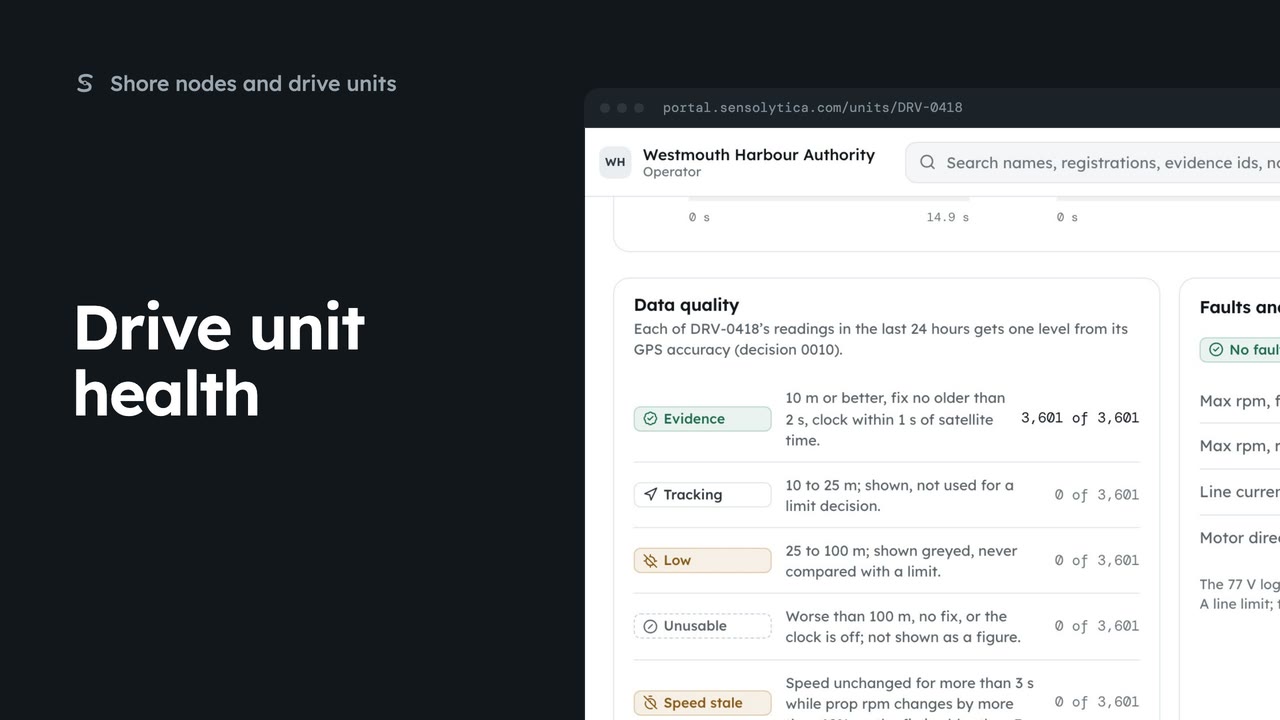 2 min
2 minRead what a drive unit reports now, how good its readings are, and its faults and limits.
2 min6 stepsAdmin, Operator
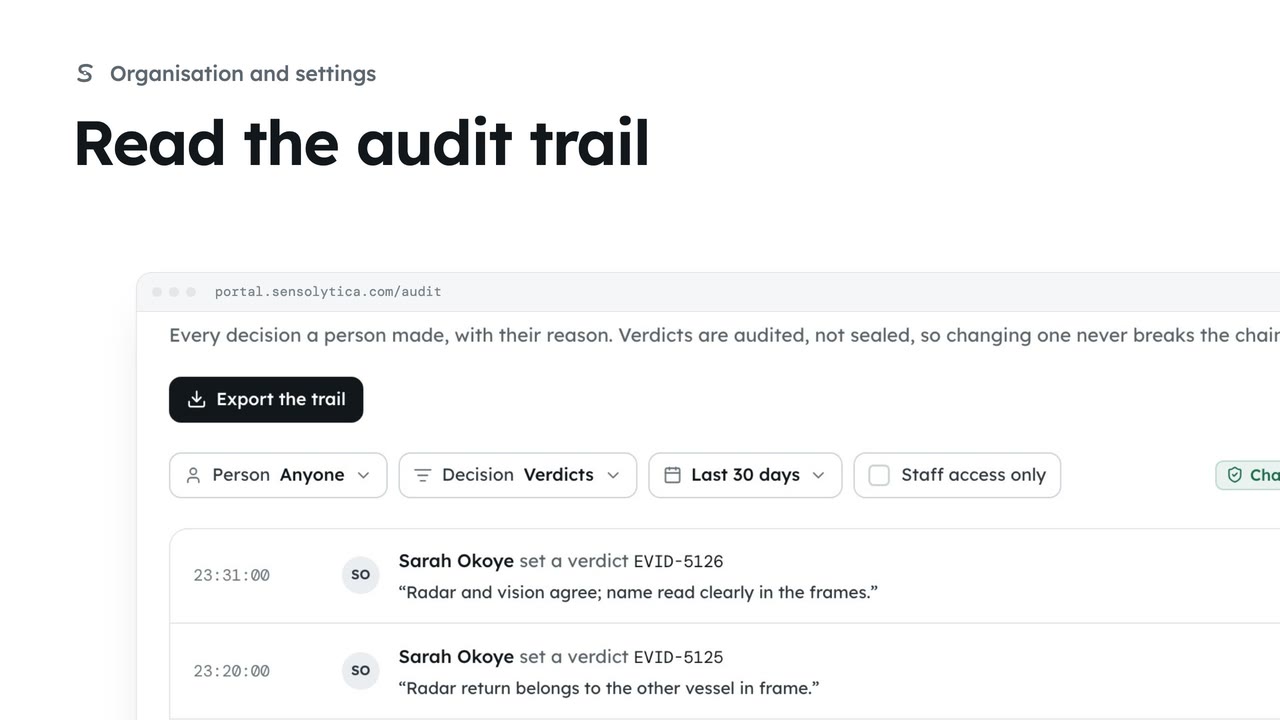 2 min
2 minSee every decision a person made in your organisation, with their reason, and export it for an auditor.
2 min4 stepsAdmin
Checked against the portal on 15 October 2026. Westmouth names, vessels, units and figures are illustrative. General guidance on using the portal, not legal, regulatory or financial advice.